Internal User Login
警告
After successfully establishing a network connection with cnSRC , in order to further ensure the security of user data, cnSRC does not allow users to log in to the server using telnet, etc., and must use the ssh login method to use the center’s resources.
危险
Regarding user password, the administrator sends a random password to the user. For user access security, the account must be modified immediately after opening. Please visit the following website to modify the password in the web page: https://chinasrcyun.shao.ac.cn:7443
There are two ways to log in to cnSRC: web login and command line login.
Web Login
Users can log in to cnSRC through the web interface: https://chinasrcyun.shao.ac.cn:2443 Click “Login through the Unified Authentication Service” to enter the Unified Identity Authentication Platform,
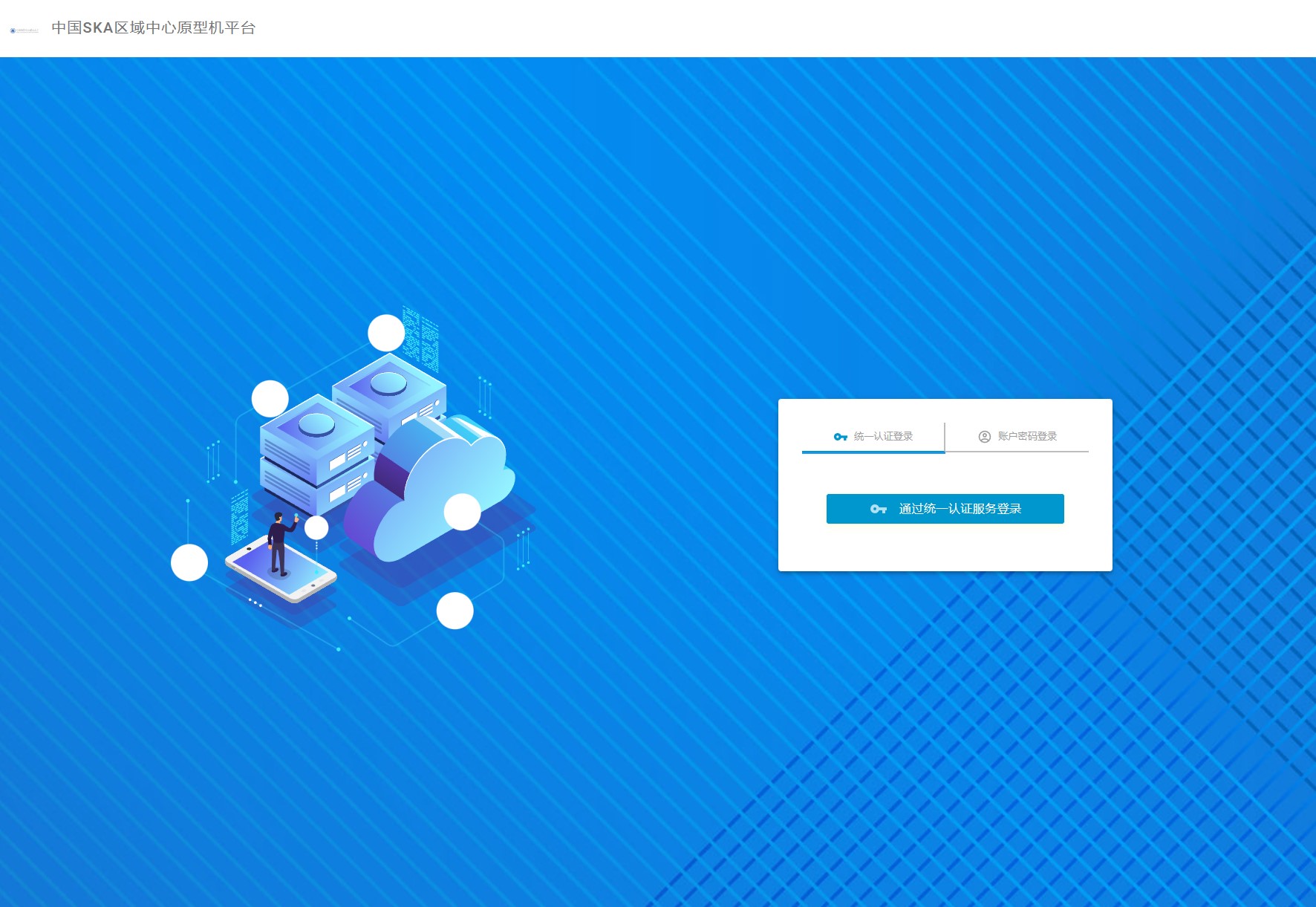
Enter the username and password, click “Login” to enter the service platform. Login to the cnSRC management system, as shown below:

Enter the username and password to log in.
User Registration
The first login requires registering a new user and filling in complete user information on the platform, and then waiting for the administrator to approve the registration before entering the platform.
Click the “Register” button,
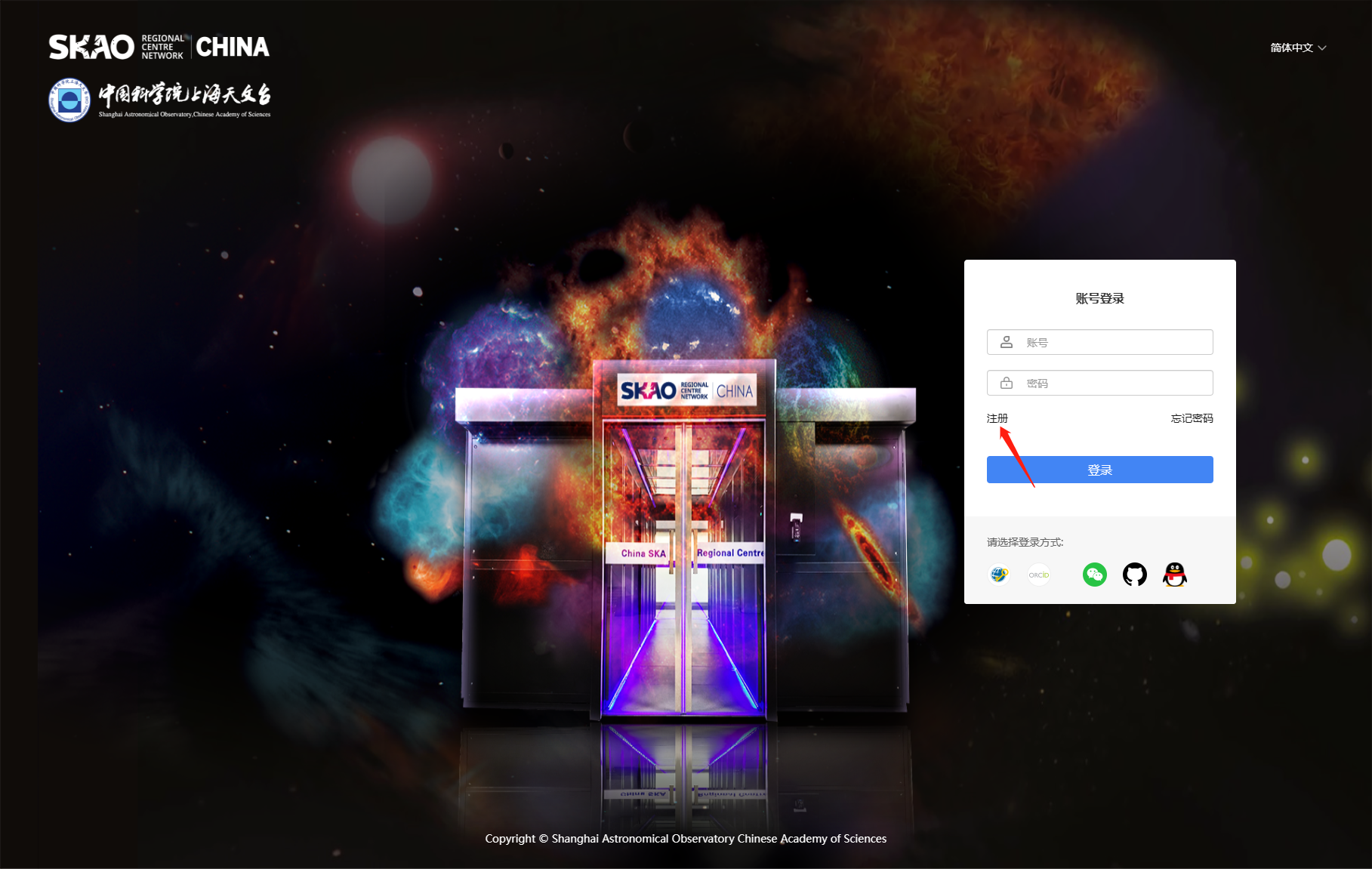
Enter the registration interface, fill in the username, password and other information.

注意
Note that the notification email is filled in correctly and is a normal email that can receive mail. After the subsequent approval, you need to receive the verification code for the first login.
After submitting the registration application, the administrator will review it in the background. After approval, the email will receive a message:
备注
亲爱的用户 xxx 您好,
您的注册申请已经审批通过,请使用用户名 xxx 、Token ***** 及申请注册时所设置的密码进行登录。
收到这样的邮件,就表示已经通过用户审批,可以登录使用平台了。
First login
In order to verify that the email is the email of the registered user, so, when the user first logs in, they need to use the verification code received by email to log in.
Enter the username directly, the system will judge that the user is a first-time login user, and automatically jump to the interface for using the username and verification code to log in.
Enter the username and the verification code received by email, click “Login” to log in.
Normal login
After the first login through the username and verification code, the subsequent login uses the password registered during the registration.
Reset Password
Click the user in the upper right corner, select “Reset Password”:
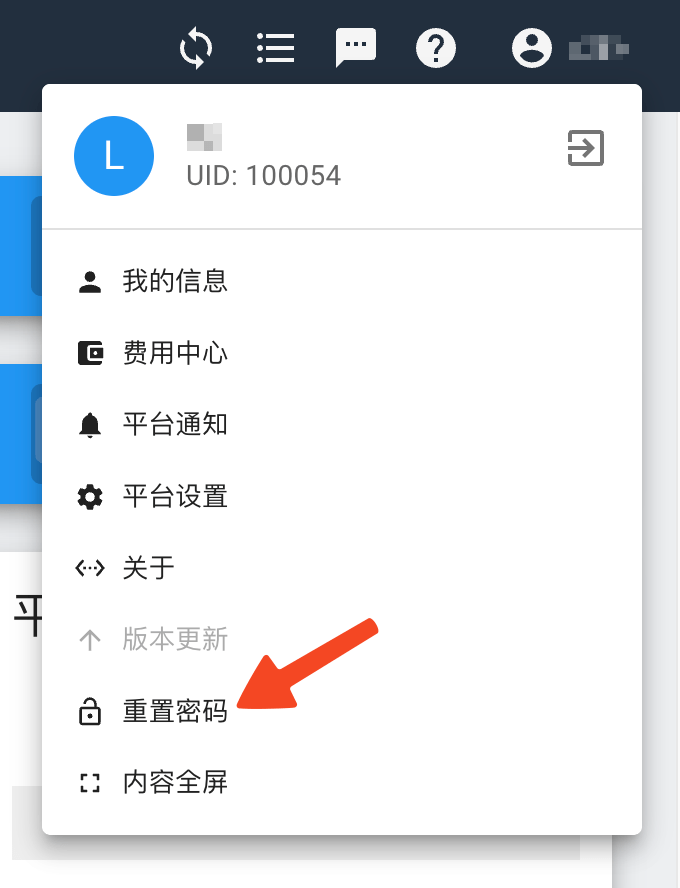
Please confirm that the password selected is strong enough and secure.

重要
Login to the platform Web page, and use the cluster login, SSH connection and WebDAV platform services with the username and password registered on the platform.
User Information
Click the user in the upper right corner, enter the “My Information” interface to view personal information, including the basic information filled in during registration and the usage/quota details.
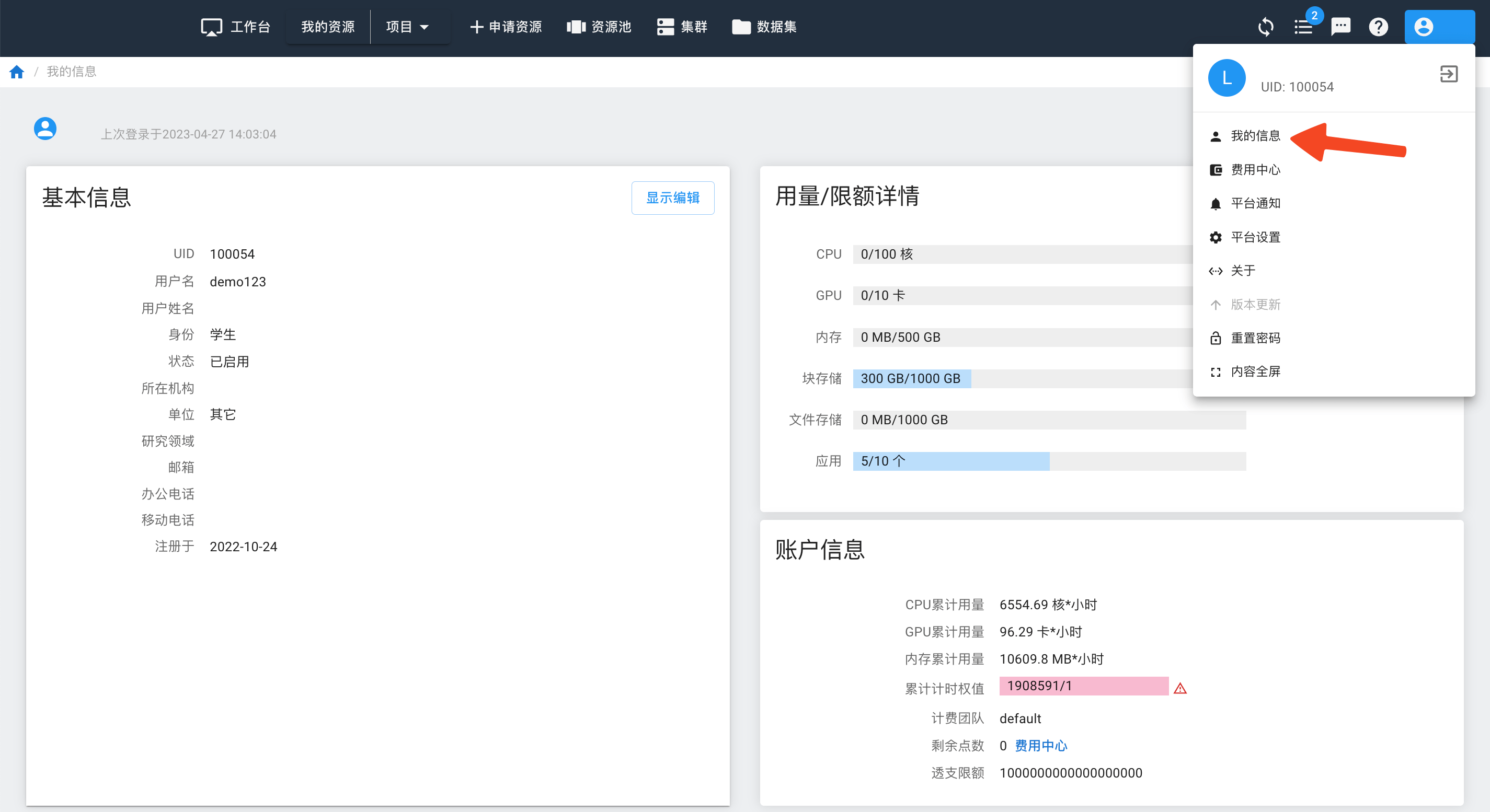
Usage/Quota Details
Each user is allocated a certain amount of resources. When creating an instance, the resource limit is occupied. If the resources used exceed the limit, the system will prompt that the resources are insufficient. Users can first release resource, and then create an instance.
If you need more resources, and exceed the system default limit, users can contact the administrator to modify the personal limit.
Command Line Login
Linux and MacOSX users can use the terminal terminal, Windows users are recommended to use xshell, enter the command:
$ ssh -p 20002 username@chinasrcyun.shao.ac.cn
备注
username is the username, port is the port number of the login node, which can be obtained from the web platform.
The screenshot of the command line login is as follows.
Windows login using xshell
Linux login using terminal
MacOSX login using terminal
$ ssh -p 20002 username@chinasrcyun.shao.ac.cn
备注
The default storage space for ordinary users is 500GB. If you have other needs, please contact the administrator to adjust the quota (Please contact shaoska@shao.ac.cn).
The account information such as username and password please apply through the application form.
Please contact shaoska@shao.ac.cn.